TL;DR
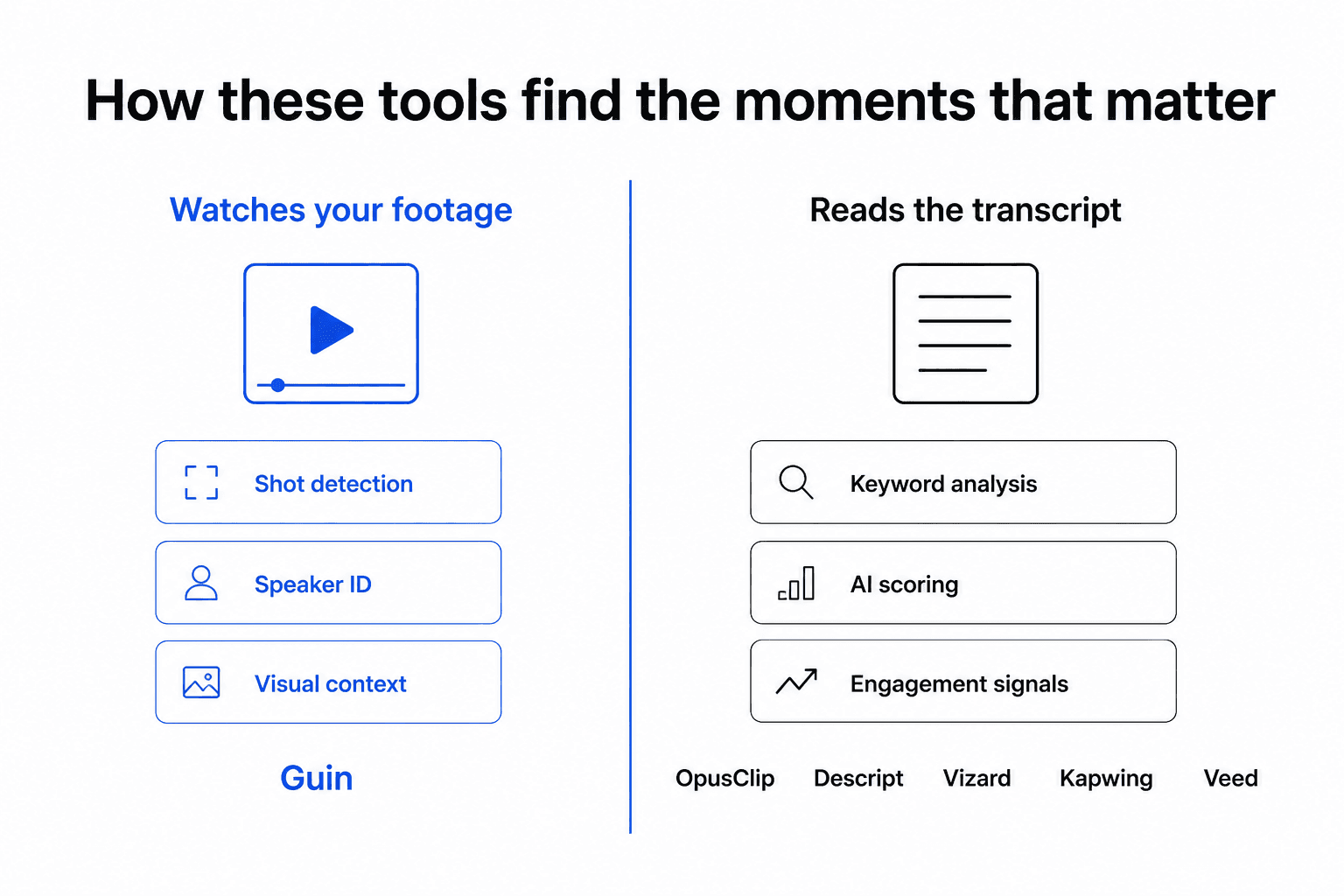
Most tools clip by reading the transcript. Case study videos live or die on what the camera sees — the customer's expression, the site visit footage, the moment they pause before saying something important. A transcript-first tool misses all of that.
The short answer, by situation:
- You filmed an interview or site visit and need LinkedIn and Instagram clips, no editing skills → Guin. Tell it what you want, approve the plan, get publish-ready clips. It watches the footage rather than reading the text, which is why it handles b-roll and visual moments the others don't.
- You have a clean talking-head interview and just need short clips fast → Guin does this too: upload the interview, ask for the clips, approve them. OpusClip and Vizard are the transcript-first clippers if all you want is a pile of scored cuts to sort through.
- Your content is almost entirely dialogue and you're comfortable editing → Descript. Editing the transcript is genuinely faster than a timeline for spoken-word content. Guin's Smart Editor edits captions through the transcript as well, but Descript's whole workflow is built around it.
- You want a full browser-based editor with strong subtitles and you'll do the cutting yourself → Guin's Smart Editor has the timeline, captions, layouts and reframe built in. Veed and Kapwing are the picks if you don't want an AI pass at all.
- You need fast auto-captions on short clips and you're happy with a mobile-native workflow → CapCut.
Most people asking this question should try Guin first. Especially if your case study footage includes a site visit, b-roll, or any visual storytelling beyond a talking head in a box.
Why a case study video is hard to clip
You come back from a customer shoot with 45 minutes of footage. There's an interview — maybe 20 minutes of the founder talking about how they use your product. There's b-roll: the team working, the office, a quick walkthrough of their workflow. There's a moment around the 18-minute mark where the customer pauses, looks up, and says something unrehearsed that would make a perfect 30-second clip. You didn't plan for that moment. It's just there, buried in the footage.
The problem isn't that the moment doesn't exist. It's that finding it, framing it, cutting it, adding captions, reformatting it for 9:16, and doing that five times for five clips takes either a skilled editor or a full evening.
Most AI tools approach this the same way: transcribe the audio, find the high-engagement moments in the text, clip around them. That works reasonably well for a podcast or a clean talking-head video where the story is entirely in the words. It breaks down for case study footage because:
The best moments are often visual. A customer demonstrating something at their desk, a site walk where the context is visual, a reaction shot that tells the story without words — none of these show up in a transcript.
B-roll has no transcript. If 15 minutes of your shoot is footage of the customer's operation, a transcript-first tool has nothing to work with. It will either skip that footage entirely or create awkward cuts around it.
Freelancers without context do the same thing. We've heard from startup founders and small business owners who hired an editor on Upwork for $60–100 and got back clips that were technically correct — good cuts, proper captions — but decontextualised. The editor grabbed random moments because they didn't know what mattered to the business or the customer relationship.
The tools below are listed in order of how well they handle this specific problem. Not social media clipping in general — this specific job: case study footage with interviews, b-roll, visual moments, and a need for polished LinkedIn and Instagram clips.
What "good" looks like
Before picking a tool, it helps to know what you're actually trying to produce.
A LinkedIn clip performs best at 16:9 (standard) or 4:5 (slightly taller, fills more feed real estate). Optimal length is 30–90 seconds — long enough to land a full idea, short enough to keep the viewer. One claim per clip. Captions on, because most LinkedIn video is watched without sound. The clip should lead with something worth watching, not a slow build.
An Instagram Reel is 9:16 — full phone screen. The hook needs to land in the first 2–3 seconds. Viewers swipe fast and decide immediately. Format, aspect ratio, and hook timing matter as much as content.
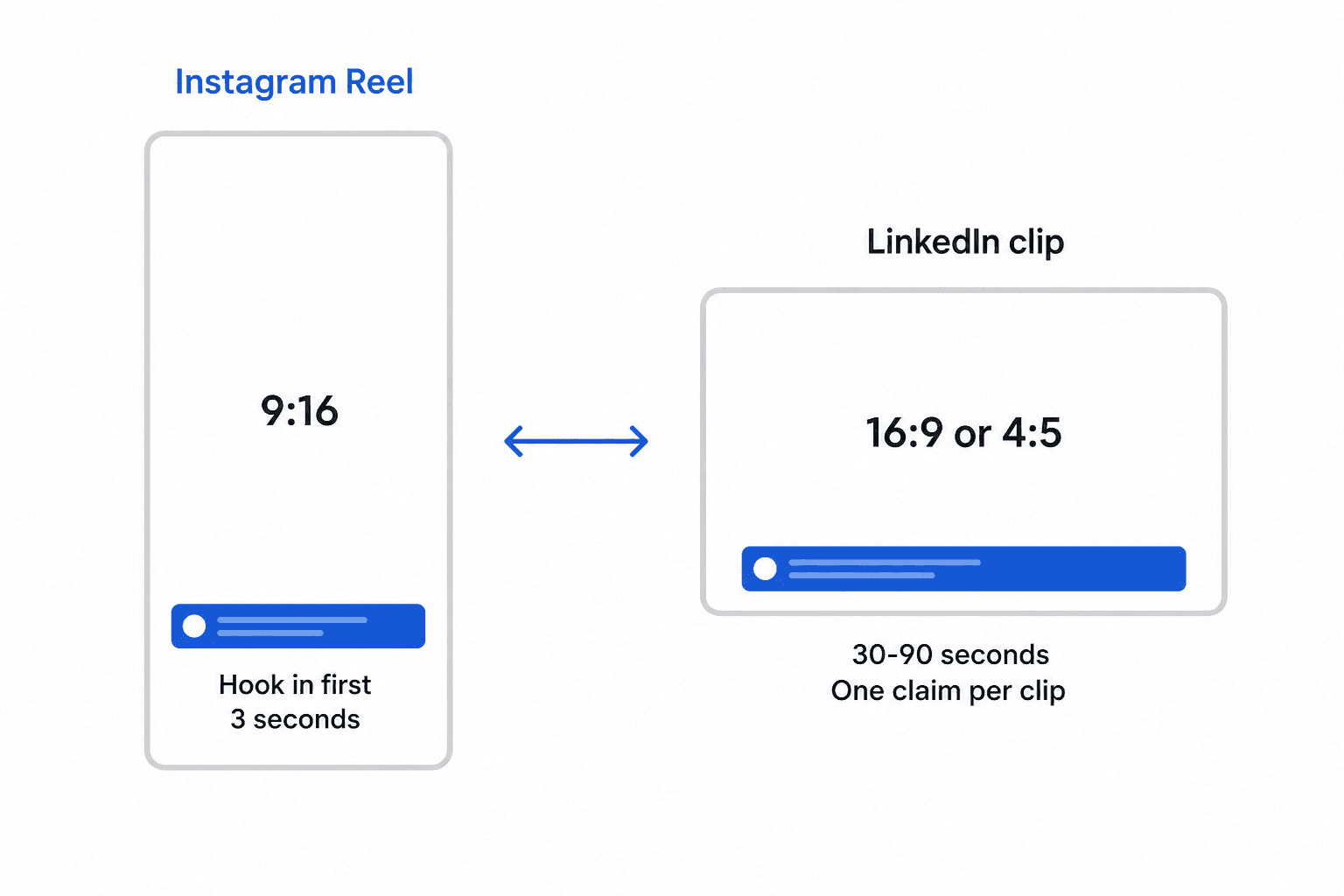
Both formats require autoframe: when you reformat 16:9 footage to 9:16, you need the subject to stay in frame. Tools that don't have autoframe force you to manually adjust every single clip every time you change the format. For a case study with multiple clips across two platforms, that's a significant amount of manual work that should be automated.
The tools
Guin
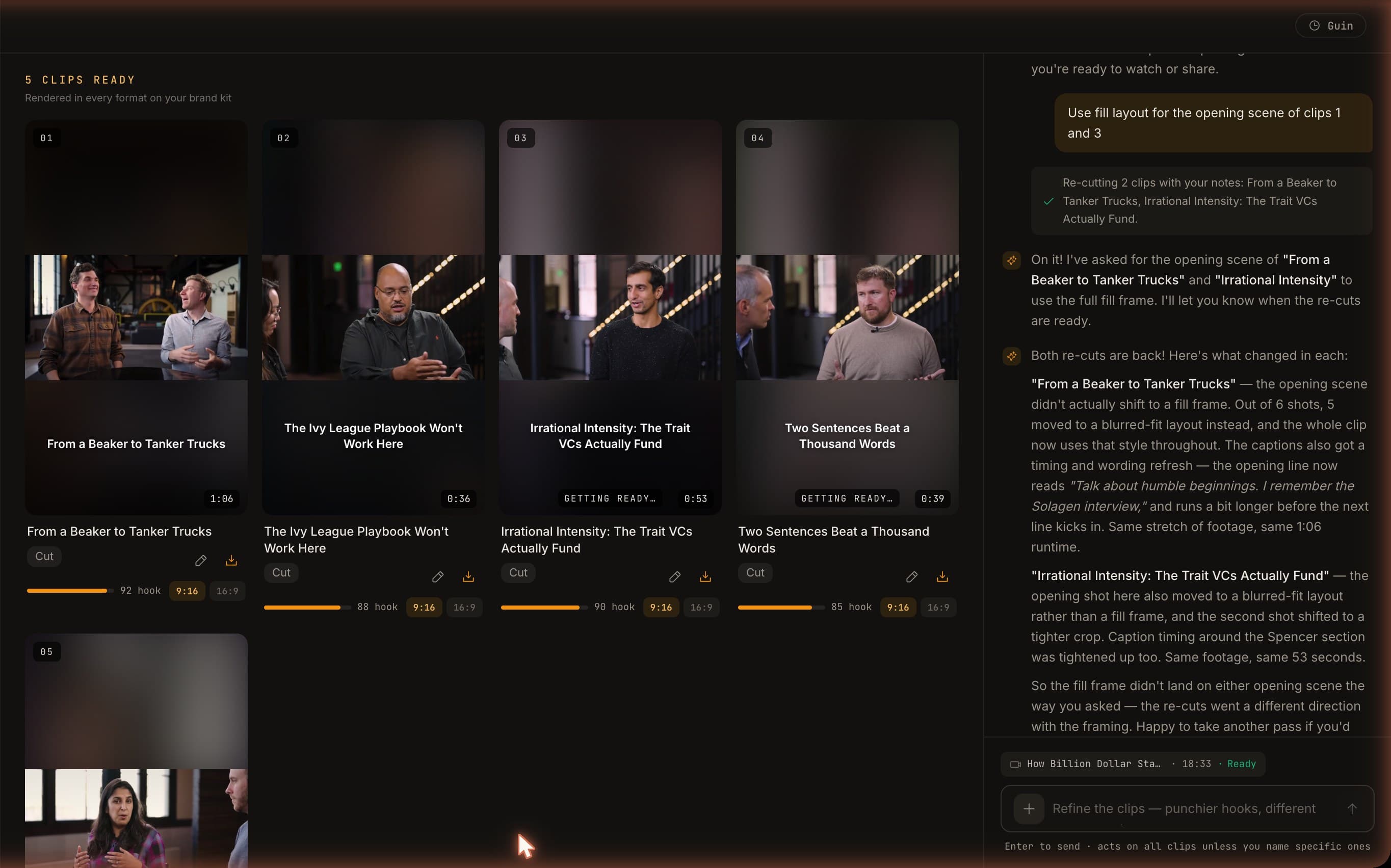
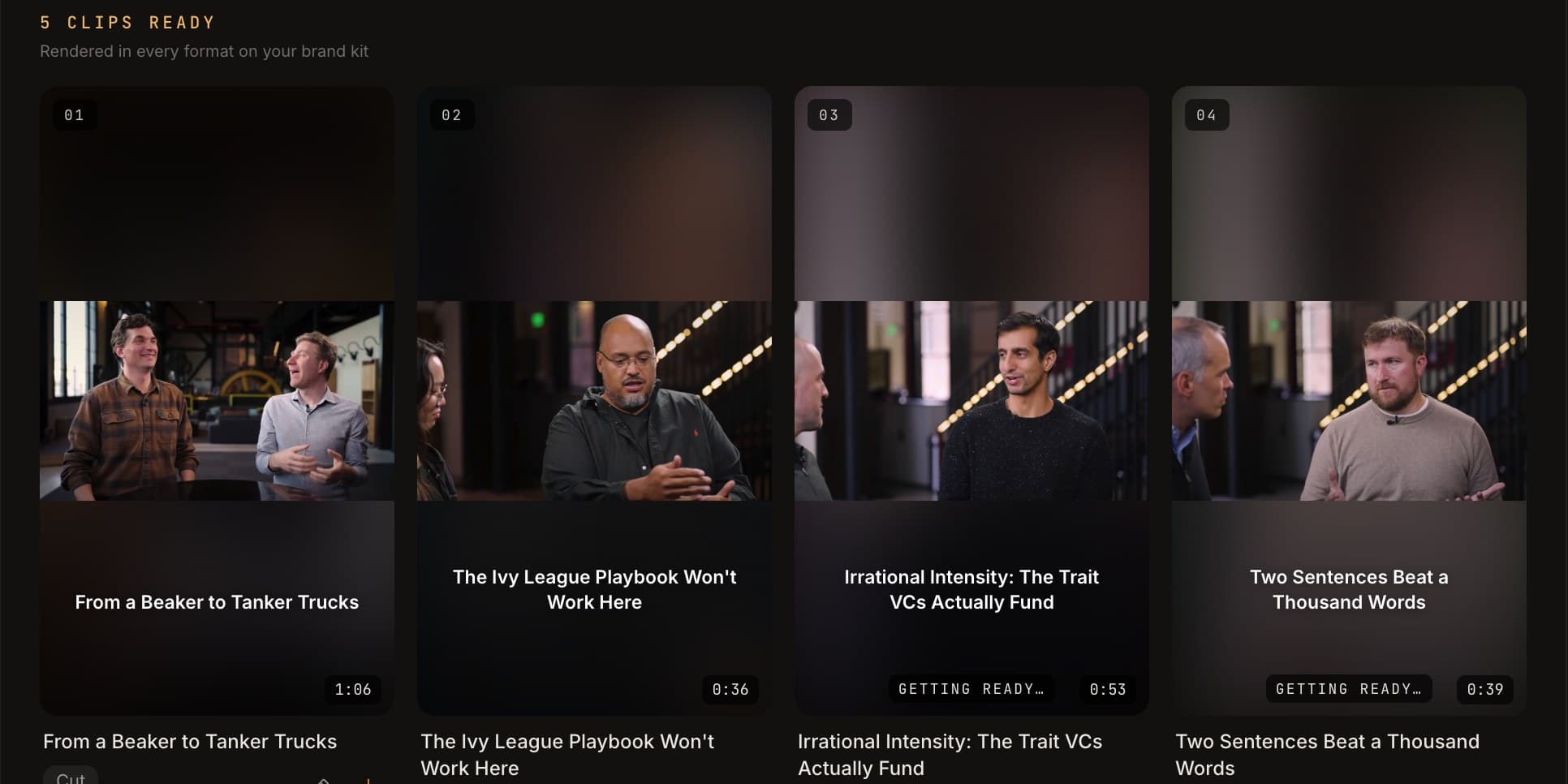
Guin starts from a different assumption than every other tool on this list. Rather than asking you to pick moments from a transcript or a timeline, you tell it what you need in plain language: "four clips from the customer interview — one for LinkedIn about the before/after, two Instagram Reels about the workflow change, one longer cut for YouTube." It proposes a plan. You approve. The clips come out with captions, the right formats, and the correct aspect ratios.
The thing that makes it worth covering separately from the transcript-first tools: Guin watches the footage. It builds a transcript, but it also does shot detection, speaker identification, and visual analysis. That's why it can handle b-roll, site visits, and non-dialogue footage that would leave the other tools with nothing to work with. You can upload phone video, DSLR clips, photos, voice notes, and a YouTube link and it will work across all of them in the same workspace.
The output for a case study workflow would typically be: LinkedIn clips in 16:9 or 4:5, Instagram Reels in 9:16, and optionally a longer case study edit alongside the clips — all in the same project. Autoframe keeps the subject in frame when you switch aspect ratios. Captions are fully styled: font, size, colour, active-word highlight, backdrop. Export is MP4, MOV, or WebM up to 4K, with project bundles for Premiere Pro, Final Cut Pro, or DaVinci Resolve if you want to finish in your own NLE.
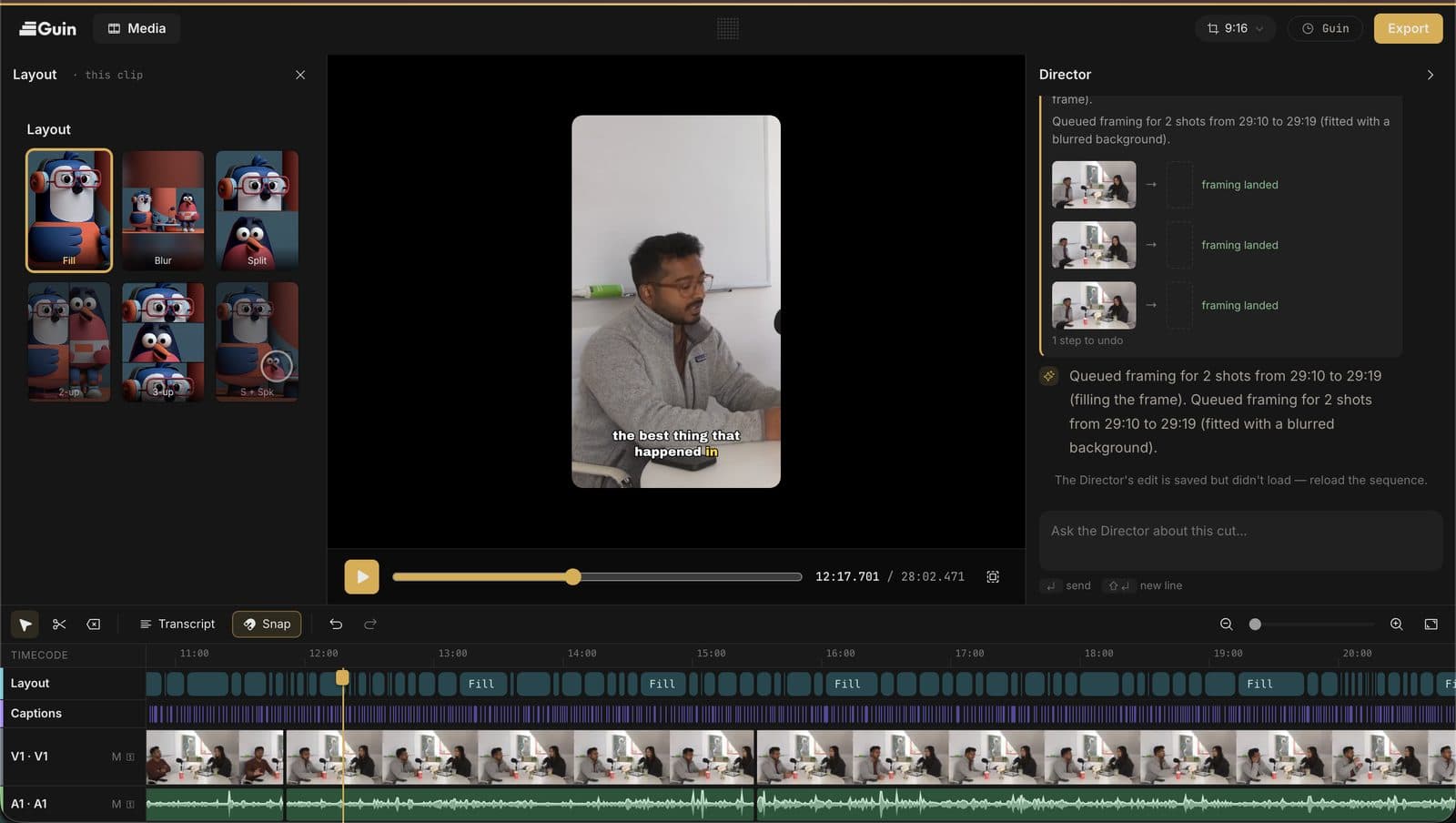
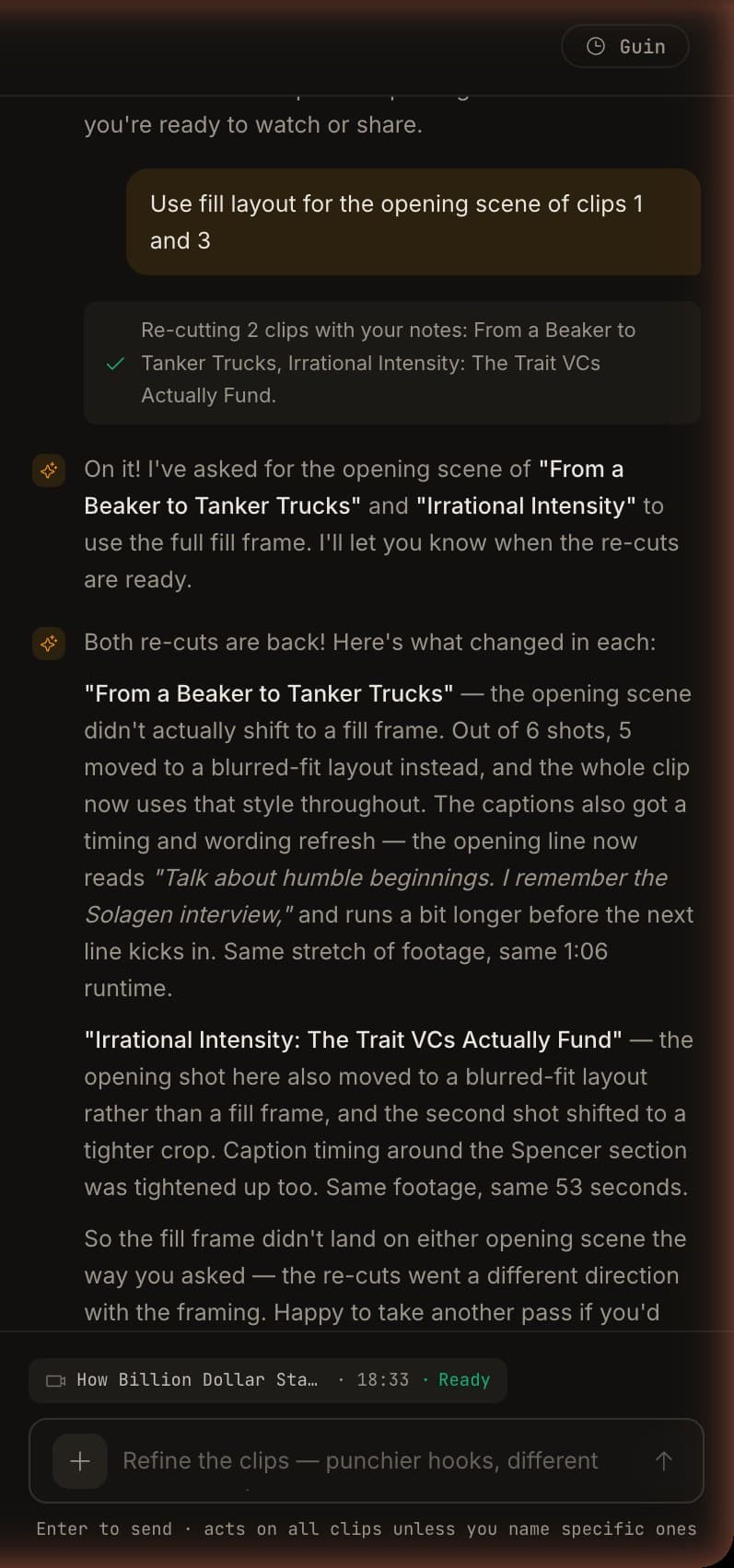
If something's off, you refine by describing it: "make the hook punchier on the first clip, tighten the captions on the second." Changes apply across the set. The Smart Editor (a timeline with a conversational Director) is there for precise adjustments — split, trim, ripple delete, per-clip audio gain, caption editing via the transcript — without leaving the platform.
"We do demos every day and have had a growing pile of videos just sitting there. Guin has been great for turning all that into content for YouTube." — Amaresh Ray, Co-founder & CEO, Multiplier
Input: Any footage — phone video, photos, voice notes or audio, a whole shoot day, or a pasted YouTube link.
Pricing (guin.ai/pricing):
| Price | What you get | |
|---|---|---|
| Free to try | $0, no card | Upload your footage, ask for clips, and see what comes back before you pay |
| Pro | $99/month ($82.50/month billed annually) | Every feature and the highest limits on this list: 120 published minutes a month, 200 GB footage library, no credits, re-edits never metered |
| Team | Let's talk | Advanced features, multiple seats, shared workspace, volume minutes and storage, priority support |
The 7-day trial (20 finished minutes, no watermark) starts at your first export, not at sign-up. Only exported video counts; re-edits, revisions and retries never do.
Where it falls short for this job: Guin doesn't import from Google Drive, Dropbox or Frame.io yet, and it doesn't auto-post to social platforms: you export and post yourself. There is no shared review link or version history. And at $99/month it costs more than the clippers below; the comparison that matters is the freelancer at $60–100 per video.
OpusClip
OpusClip has built a large user base — 16 million video creators — on a single, well-executed idea: upload a long video, get short clips for social. Its AI finds the most engaging moments using transcript analysis and its own virality scoring system, adds captions, formats for each platform, and (on paid plans) auto-posts to your social accounts.
For a case study that's a clean talking-head interview — the customer speaks directly to camera, the story is in the words — OpusClip works well. Upload the 45-minute interview, let it find the moments, review the scored clips, pick the ones you want. The process is fast.
"OpusClip takes long-form video content and turns it into polished, engaging short clips with incredible accuracy. The AI is excellent at identifying the strongest moments, adding dynamic captions, and producing social-ready edits that look like they were done by a professional editor." — G2 reviewer
The G2 rating is 4.6/5 from 119 reviews, with consistent praise for speed and ease of use.
Input: Long-form video (YouTube link or upload).
Pricing (opus.pro/pricing, checked 2026-09-23):
| Price | |
|---|---|
| Free | $0 |
| Starter | $15/month |
| Pro | $29/month |
| Business | Custom |
Where it falls short for this job: OpusClip is transcript-first. The visual moments — the b-roll, the site visit footage, the reaction shot — aren't something it can identify. If your case study footage isn't primarily talking-head, the clips it returns may miss what actually made the shoot worth doing. It also produces short clips only; there's no option to produce a longer case study edit alongside the clips. And the virality scoring, while useful for entertainment content, doesn't map cleanly to B2B case study storytelling where the goal isn't views but credibility.
Descript
Descript earns genuine loyalty from podcasters and interview editors, and for good reason. The premise — edit video by editing the transcript like a Google Doc — genuinely transforms the workflow for spoken-word content. Delete a sentence from the transcript and the audio and video disappear. Filler word removal runs in seconds. Auto-silence detection strips long pauses. For a clean interview where every word matters, this is faster than a traditional timeline.
The G2 rating is 4.6/5 from 923 reviews, with consistent praise from podcasters and content teams.
"Ease of use, fast execution, and a simple interface. The setup is intuitive and smart, making it easy to get started." — Vince R., Executive Producer, G2 review
Input: Video and audio files. Screen recording built in.
Pricing (descript.com/pricing, checked 2026-09-23 — per user, per month, billed annually):
| Price (annual) | |
|---|---|
| Free | $0 |
| Hobbyist | $16/month |
| Creator | $24/month |
| Business | $50/month |
Where it falls short for this job: Descript's model is entirely text-first. Footage without clean narration — b-roll, a site walkthrough, a customer demonstrating something at their desk — is outside what its editing metaphor can handle. You can still edit that footage in Descript, but you're doing it manually on a timeline, not through the transcript. For a case study that's primarily a clean interview, Descript is a legitimate choice. For anything where the visual storytelling matters, the text-based approach runs out of road.
Vizard
Vizard sits in the same category as OpusClip — upload a long video, get short clips out — but with a slightly different balance between automation and manual control. Users particularly appreciate the ability to step in and adjust clips when the AI misses something.
The G2 rating is 4.7/5 from 417 reviews, among the highest in this category.
"The best balance of automated clipping and precise manual editing. Vizard has made my workflow incredibly efficient. I can now create content at a pace I never thought possible. The AI is smart enough to catch the good stuff, but when it misses, I have full manual control to fix it." — Andrey, Instructor, G2 review
Input: Long-form video. YouTube links supported.
Pricing (vizard.ai/pricing, checked 2026-09-23 — credit-based; 1 credit = 1 minute of video input):
| Credits/month | |
|---|---|
| Free | 60 credits (60 minutes of input) |
| Creator | Not published |
| Business | Not published |
Where it falls short for this job: Vizard is also transcript-first. For a case study with meaningful b-roll or visual moments, the same limitation applies as with OpusClip. No long-form output — it's clips only. And the credit-based pricing for paid plans isn't published with specific prices, which makes cost comparison harder than it should be.
Kapwing
Kapwing is a browser-based video editor with strong AI subtitle generation and a collaborative workspace. It's used by teams at Spotify, Google, and Dyson for quick social media content. The distinguishing feature for clip work is its auto-subtitle generation — fast, accurate, and available as a starting point even on the free tier.
What Kapwing is not: an AI clipper that finds moments for you. You upload your footage, generate subtitles, and then do the cutting yourself on a timeline. For a team that wants control over which moments to clip — and is comfortable spending 30–60 minutes in a browser editor — Kapwing is a solid, affordable option.
"It houses all of your media, making it easy to build videos and reuse components when necessary. The built-in AI transcript editing, among many other features, makes this a hosted editing platform worth leveraging to make quick, efficient use of time." — G2 reviewer
Input: Video, images, audio, text.
Pricing (kapwing.com/pricing, checked 2026-09-23):
| Price | |
|---|---|
| Free | $0 (720p, watermark, 4-minute exports) |
| Pro | $16/month (annual) / $24/month (monthly) — 4K, no watermark, 6 GB uploads |
| Business | $50/month (annual) — AI voice clones, lip sync |
| Enterprise | Custom |
Where it falls short for this job: No AI moment-finding. You are the editor; the tool gives you subtitles and a timeline, not a set of clips. For someone who doesn't edit, this is the wrong starting point — the time savings come from better subtitle generation and a browser-based workflow, not from having the work done for you. Some G2 reviewers also flag export reliability and slow support response times.
Veed
Veed is the most comprehensive all-in-one editing platform in this comparison. Subtitles in 125+ languages, AI avatar generation, background removal, noise reduction, filler word removal, Magic Cut, eye contact correction, translation and dubbing — if a video editing feature exists, Veed probably has it. The G2 rating is 4.6/5 from 2,176 reviews, the largest review base of any tool here.
For teams that know what they want to make and want to do it in a browser without installing software, Veed is genuinely capable. A content lead at a startup could caption, reformat, clean audio, and export a LinkedIn clip from their case study in under 30 minutes, all in Veed.
Input: Video, text prompt, images.
Pricing (veed.io/pricing, checked 2026-09-23):
| Price | |
|---|---|
| Free | $0 (with watermark) |
| Creator | $12/month |
| Pro | $22/month |
| Studio | $39/month |
| Enterprise | Custom |
Where it falls short for this job: Veed is powerful in capable hands. It doesn't find moments for you — you still need to watch your footage, decide what to clip, and do the cutting. For someone who doesn't edit and has 45 minutes of case study footage, Veed hands the judgment back to them. The AI tools help with subtitles and cleanup; they don't solve the "which 60 seconds do I use" problem.
CapCut
CapCut started as a mobile editor built for TikTok and has grown into a web editor with a broad template library and fast auto-captions. It's genuinely the fastest path from footage to a captioned short clip in the category — upload, auto-caption, pick a template, export. For anyone comfortable with mobile editing workflows, the speed is real.
The trade-off in 2026 is a tightening free tier. The platform has expanded paywalls significantly, and user reviews consistently note that features that were free in earlier versions now require a Standard or Pro subscription. Customer support is slow, and billing issues tend to stay unresolved.
Input: Video, photos, audio.
Pricing (capcut.com, checked 2026-09-23):
| Price | |
|---|---|
| Free | $0 (basic toolkit, 1080p export) |
| Standard | ~$9.99/month |
| Pro | $19.99/month or $179.99/year |
Where it falls short for this job: CapCut doesn't identify which moments in your case study are worth clipping — you still do that. The auto-captions are excellent for content you've already decided to use. For someone who wants the AI to watch the footage and find the story, CapCut isn't that. And without team collaboration features, it's effectively a single-user tool.
Comparison table
| Input | Finds moments by | Autoframe | Long-form output | Starting price | |
|---|---|---|---|---|---|
| Guin | Video, photos, audio, YouTube link | Watching the footage (visual + audio + transcript) | Yes, 5 ratios | Yes | $99/month |
| OpusClip | Long-form video, YouTube link | Transcript + virality scoring | Basic crop | No | Free / $15/month |
| Descript | Video, audio | Transcript only | No | Manual, in the editor | Free / $16/month |
| Vizard | Long-form video, YouTube link | Transcript + AI scoring | Yes | No | Free (60 min/month) |
| Kapwing | Video, images, audio, text | You pick the moments | No | Manual, in the editor | Free / $16/month |
| Veed | Video, images, text prompt | Transcript + Magic Cut | Yes | Manual, in the editor | Free / $12/month |
| CapCut | Video, photos, audio | Auto-caption only | Limited | Manual, in the editor | Free / $9.99/month |
How to do it in Guin, step by step
If you're going to try Guin with your case study footage, here's what the workflow actually looks like.
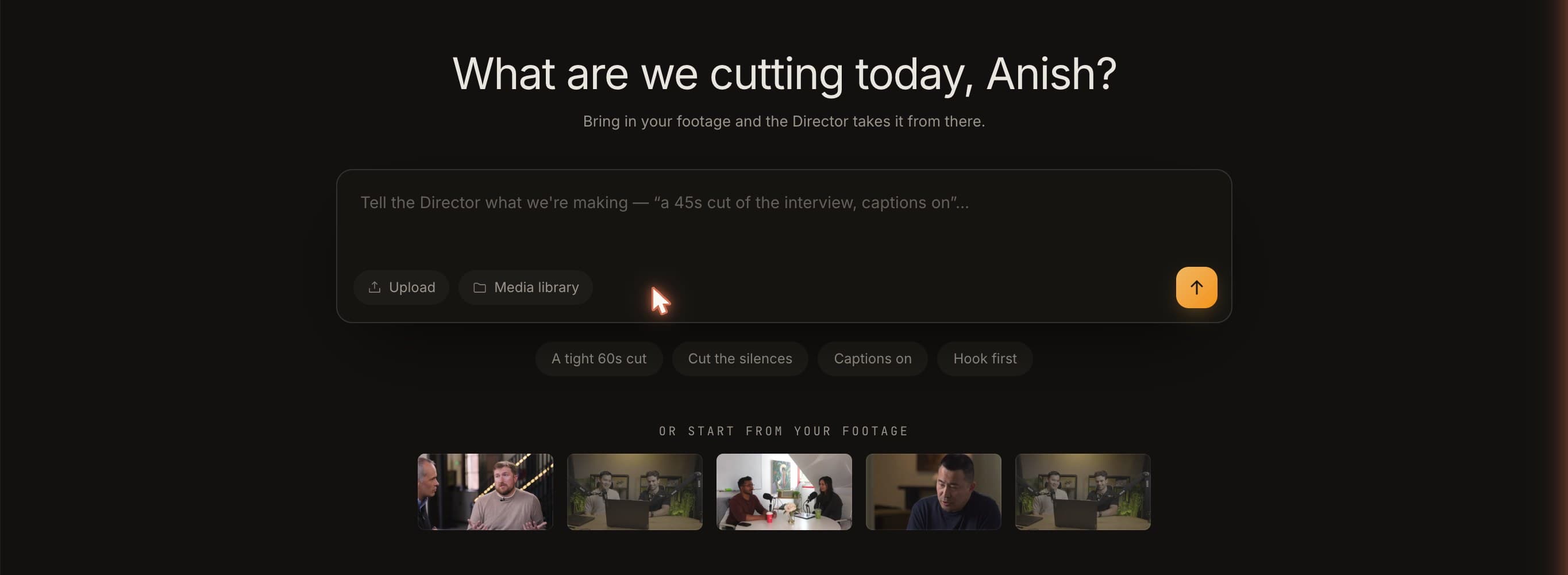
Step 1 — Upload your footage. Go to studio.guin.ai and drag in your files. Guin accepts video in any format, photos, audio, voice notes, and pasted YouTube links. You can upload a full shoot day — interview, b-roll, cutaways — in any combination. Everything lands in a shared workspace media library (uploading footage guide).
Step 2 — Tell Guin what you need. Once the footage is uploaded, you describe what you want in plain language. Something like: "I need four LinkedIn clips from the customer interview, 30–60 seconds each, one about the results, one about the workflow before we came in, and two Instagram Reels in 9:16 with a strong hook in the first few seconds." Guin watches the footage — building a chaptered summary using transcript, shot detection, and visual analysis — then proposes a clip plan (how Guin works, creating clips guide).
Step 3 — Review and approve the plan. Before anything is cut, you see the plan. Which moments Guin has identified, where each clip starts and ends, what the proposed hook is. You approve, modify, or ask for a different approach. Nothing is final until you say so.
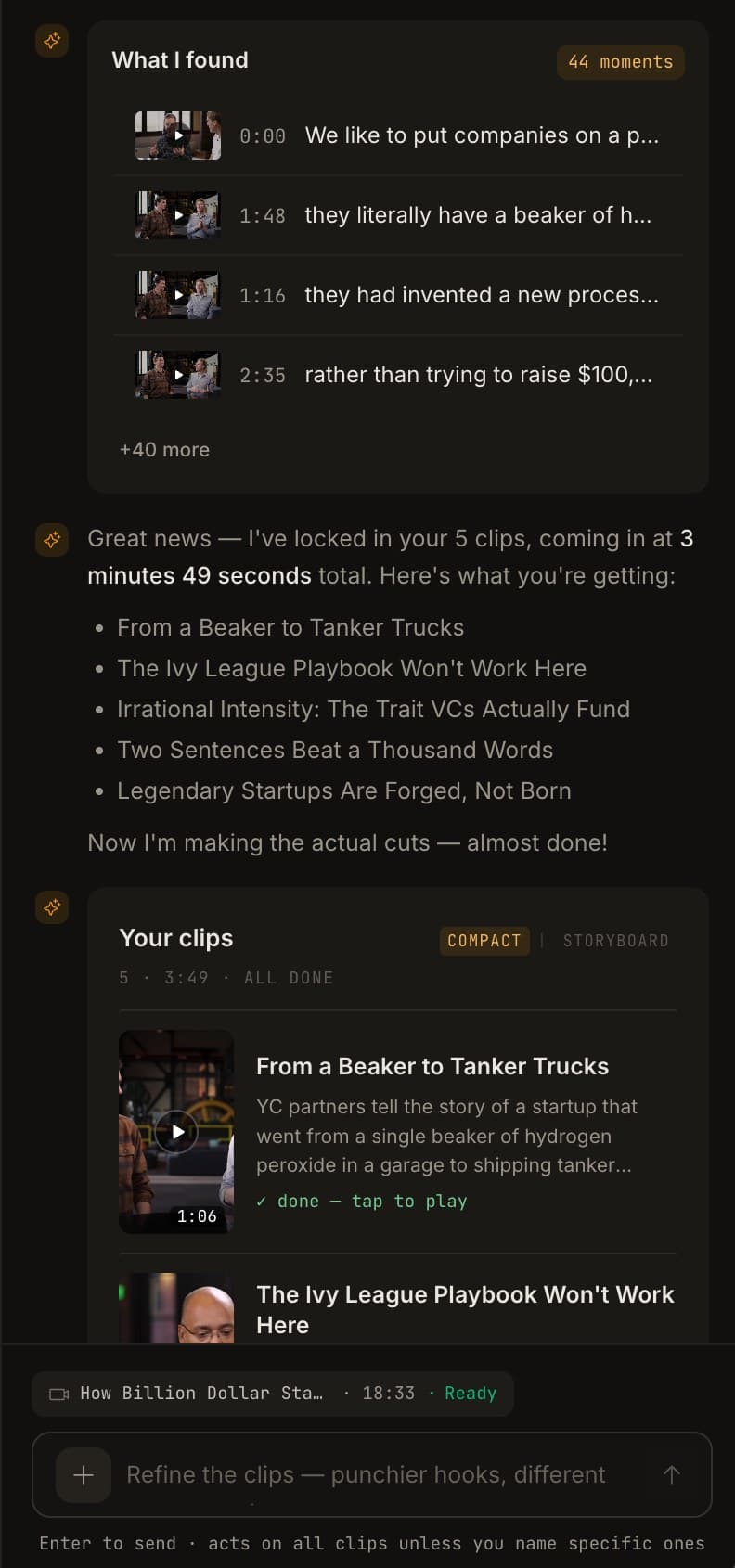
Step 4 — Review the clips. The clips come out with captions, the correct aspect ratios for each platform, and any autoframing already applied (autoframe feature, captions feature). Watch each one. If something's off — the hook is slow, a caption style doesn't fit, a clip is a few seconds too long — describe the change.
Step 5 — Refine by describing. Tell Guin what to change across the set: "punchier hook on the first LinkedIn clip, tighter captions on the Instagram Reels, can you use the moment at 18:30 instead of the one you picked?" Changes apply across all clips at once where relevant (editing clips guide). The Smart Editor (built-in editor) is there for precise adjustments — split, trim, move, ripple delete, per-clip audio gain, caption editing directly in the transcript.
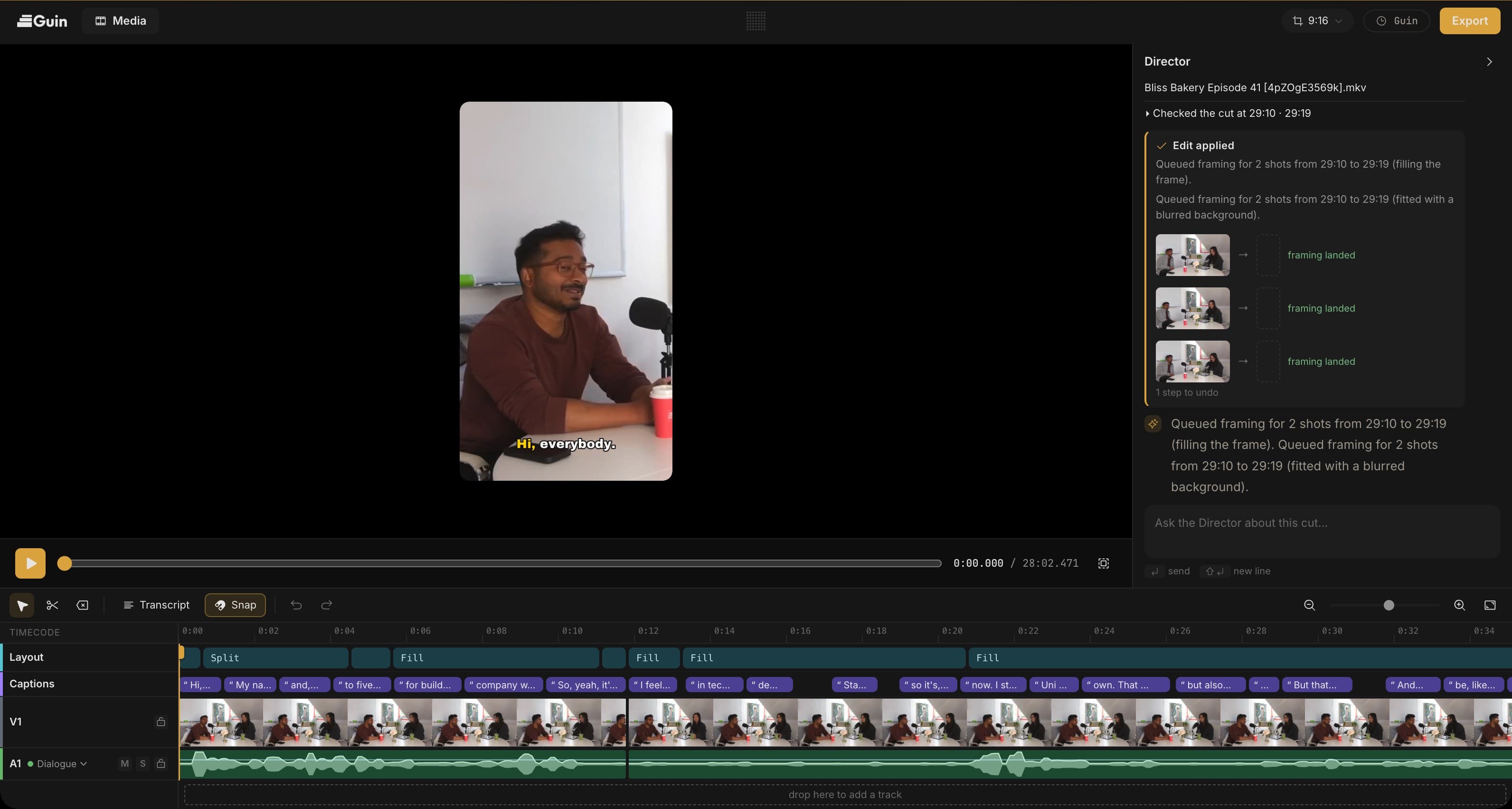
Step 6 — Export. MP4, MOV, or WebM up to 4K, at 24–60 fps. If you want to finish in Premiere Pro, Final Cut Pro, or DaVinci Resolve, Guin exports project bundles for all three (exporting guide). Exported minutes count against the 120-minute monthly limit. Re-edits and revisions don't.
Guin also makes the long-form edit from the same footage — a case study video for YouTube or your website — alongside the short cuts for LinkedIn and Instagram. Ask the Director for the long version in the Smart Editor, then ask Clip Studio for the clips.
The 7-day trial includes 20 finished minutes and no watermark. It starts when you first export, not when you sign up — so you can upload footage, build a clip plan, and see what comes out before you enter a card. That's worth knowing before you try it.
FAQ
Questions
Can I turn one case study video into both LinkedIn and Instagram clips at once?
Yes. Upload the footage once and ask for both in the same request, for example "three LinkedIn clips in 16:9 and two Instagram Reels in 9:16". Guin proposes a plan, you approve it, and every clip comes back autoframed for its platform with captions on.
Do I need editing skills?
No. You tell Guin what you need the way you'd text a person, and you approve every clip before it goes anywhere. When you want fine control, the built-in editor is right there, but you don't have to open it.
Can I upload one case study shoot and get both a long-form video for YouTube and short clips for LinkedIn and Instagram?
Yes, from the same upload. Your footage goes into the media library once, and both of Guin's surfaces work from it. Start in the Smart Editor and tell the Director what the long version is, for example "a four-minute case study for YouTube, captions on, lead with the result". It builds the sequence, you review it and refine by asking or in the timeline. Then open Clip Studio, pick the same footage, and ask for the short clips, for example "three LinkedIn clips and two Instagram Reels from the interview". Guin already knows the footage, so it proposes the plan straight away, you approve it, and the clips come back autoframed for each platform. Nothing is uploaded twice and only the minutes you export are counted.
What if the good moments are in the b-roll, not the interview?
That is the case Guin is built for. It watches the footage, not just the transcript: shot detection, visual and audio observations, and a chaptered summary across everything you uploaded. A site walk, a customer demonstrating something, or a reaction shot can be found and used even though nothing was said at that moment.
Does Guin post the clips to LinkedIn or Instagram for me?
No. Guin exports finished clips (MP4, MOV, or WebM, up to 4K) and you post them yourself. There is no scheduler or auto-post.
Recommendation
Which tool, in one line each
- Footage with b-roll, site visits or anything visual: Guin.
- One long talking-head video you want clipped fast: Guin, or OpusClip and Vizard if you only want scored cuts.
- You'd rather edit the transcript yourself: Guin's Smart Editor, or Descript.
- You want a full manual editor with AI assists: Guin's Smart Editor, or Veed and Kapwing.
- Clips you've already cut and just need captioned on your phone: CapCut. Clips you haven't cut yet: Guin.
If your case study footage has anything visual in it beyond a talking head in front of a camera — b-roll, a site visit, a customer demonstrating something, cutaway shots — Guin is the most direct path from raw footage to LinkedIn and Instagram clips without editing skills. It handles the job the brief actually describes: upload any footage, describe what you need, approve the plan, get publish-ready clips. The $99/month Pro plan costs more than the clippers on this list. But if you're comparing it to a freelancer at $60–100 per video who doesn't know your business and comes back with decontextualised clips, the numbers look different. And it does long-form too: a case study edit for YouTube or your website alongside the social clips, in the same project.
If your case study is a clean, dialogue-only interview with no b-roll and you want the cheapest tool to get clips from it fast, OpusClip at $15/month gets you most of the way there. Expect to review and curate the clips it returns rather than approving them wholesale.
If you already have an editor who knows your story and just needs a better subtitle and formatting workflow, Veed or Kapwing are capable tools at a reasonable price. You're doing the creative work; they help with the mechanical work.
Try Guin
If your problem is footage from a customer shoot that isn't turning into content — whether you're running marketing at a startup, producing content for your business, or managing video as a solo creator — Guin is worth trying with the actual footage. Upload what you have, tell it what you need, and see what comes out before you enter a card.
The Pro plan is $99/month for 120 minutes of published video and a 200 GB footage library. The 7-day trial starts when you first export — 20 finished minutes, no watermark. If you need more context on how Guin compares to other tools, the Guin vs AI video editors post covers the full landscape.